
Overview
By default, Sync on Save does not include macro-enabled Excel files (.xlsm). To ensure these files are replicated while open, add the .xlsm extension to the Sync on Save configuration.
Applies to
-
File Collaboration jobs
-
File Replication jobs
-
File Synchronization jobs
Step-by-step guide
In Peer Management Center:
-
Right-click the job and select Edit Job.
-
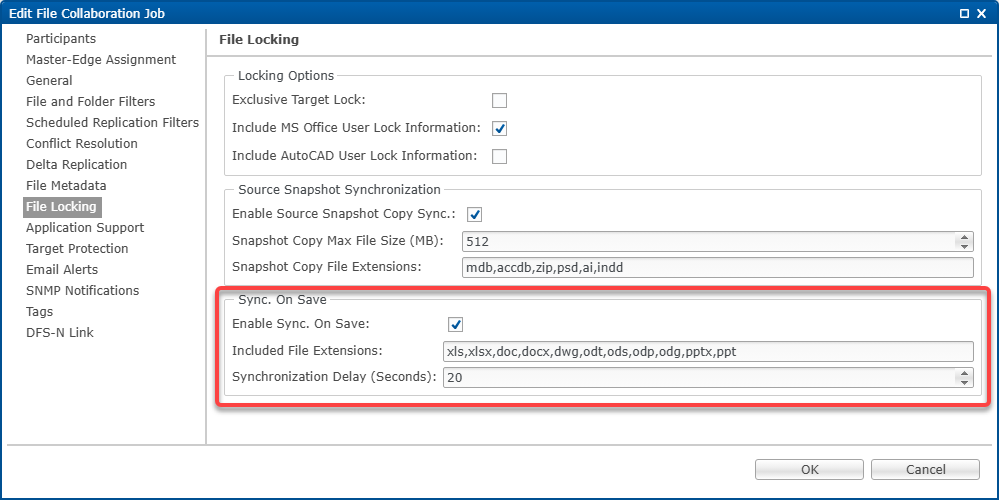
Select the File Locking page.
-
Ensure the Enable Sync. On Save option is selected.
-
In the Included File Extensions section, add
.xlsm. -
Click OK.
-
Restart the job for the changes to take effect.
Sync on Save will now include macro-enabled Excel files.